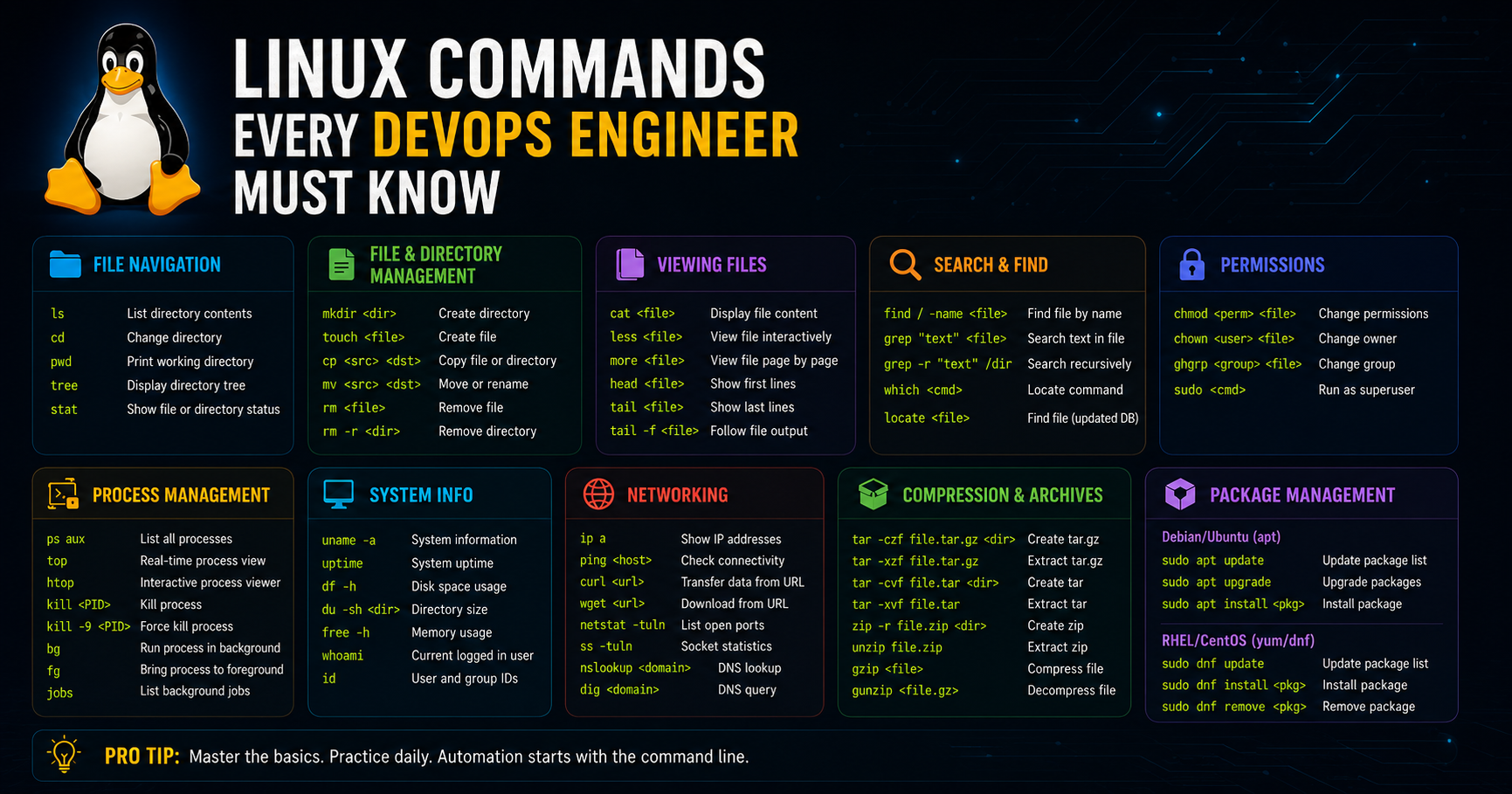
Linux Is Not Optional in DevOps
Let's get something out of the way immediately.
If you want to work in DevOps, Cloud, or SRE — you need to know Linux. Not "kind of know it." Not "I can Google my way through it." Actually know it.
Nearly every server running production workloads runs Linux. Every Docker container starts from a Linux base. Every Kubernetes node runs Linux. Your CI/CD pipelines run on Linux. Your cloud instances are Linux.
The terminal is your primary interface with all of it.
The good news is you don't need to memorize thousands of commands. You need to deeply understand the ones you'll actually use — and that's exactly what this guide covers.
These are the commands that come up every single day in real DevOps work. Not textbook theory. Real, practical, production-grade Linux knowledge.
Before We Start — Set Up Your Practice Environment
You can't learn Linux by reading about it. You need a terminal in front of you.
Option 1 — WSL2 on Windows: If you're on Windows, install WSL2 (Windows Subsystem for Linux) and run Ubuntu. It's free and takes about 10 minutes to set up. Open PowerShell as administrator and run:
wsl --install
Option 2 — VirtualBox: Download VirtualBox and create an Ubuntu 22.04 virtual machine. Free, isolated, and you can break things without consequences.
Option 3 — Cloud instance: Spin up a free tier EC2 instance on AWS or a free Droplet on DigitalOcean. This gets you a real cloud server to practice on.
Option 4 — Already on Mac or Linux: Open your terminal. You're ready.
Now let's get into the commands.
Navigation and File System
These are the first commands you learn and the ones you use most.
pwd — Print Working Directory
pwd
Shows you exactly where you are in the file system. When you're lost in a deep directory structure, this is your anchor.
/home/ubuntu/projects/myapp
ls — List Directory Contents
ls
ls -la
ls -lh /var/log
ls alone shows files in the current directory. But you'll almost always use flags:
-l gives you the long format — permissions, owner, size, date -a shows hidden files (files starting with a dot) -h makes file sizes human-readable (KB, MB, GB instead of bytes) -la combines long format with hidden files — your everyday go-to
The output tells you everything: who owns a file, when it was last modified, whether it's a file or directory, and what permissions apply.
cd — Change Directory
cd /var/log
cd ~
cd ..
cd -
cd ~ takes you home. cd .. goes up one level. cd - takes you back to the previous directory — incredibly useful when you're jumping between two locations.
find — Search for Files
find /etc -name "*.conf"
find /var/log -name "*.log" -mtime -1
find /home -type f -size +100M
find is one of the most powerful commands in Linux. Use it to locate files by name, type, size, modification time, or permissions.
The second example finds all log files modified in the last day. The third finds files larger than 100MB. These are the kinds of searches you run when debugging production issues.
tree — Visual Directory Structure
tree
tree -L 2
tree -a
tree prints a visual representation of your directory structure. -L 2 limits it to two levels deep. Not installed by default on all systems — apt install tree to get it.
File Operations
cp — Copy Files and Directories
cp file.txt /backup/file.txt
cp -r /etc/nginx /backup/nginx
cp -p config.yml config.yml.bak
-r copies directories recursively. -p preserves timestamps and permissions — important when backing up configuration files.
mv — Move or Rename
mv old-name.txt new-name.txt
mv /tmp/config.yml /etc/app/config.yml
mv both moves and renames. If source and destination are in the same directory, it renames. If they're different directories, it moves.
rm — Remove Files
rm file.txt
rm -rf /tmp/old-deployment
rm -rf removes directories recursively and forcefully. This command deserves respect — there is no recycle bin. Once it's gone, it's gone. Always double-check the path before running rm -rf.
mkdir — Create Directories
mkdir logs
mkdir -p /opt/myapp/config/environments
-p creates parent directories as needed. Without it, mkdir fails if the parent directory doesn't exist.
touch — Create Empty Files
touch deploy.log
touch .gitkeep
touch creates empty files or updates the timestamp on existing ones. Often used to create placeholder files or trigger file watchers.
Viewing and Editing Files
cat — Print File Contents
cat /etc/hosts
cat config.yml
For small files, cat is the quickest way to see the contents. For large files, use less instead.
less — Paginated File Viewing
less /var/log/syslog
less +F /var/log/app.log
less lets you scroll through large files without loading everything into memory. Use arrow keys to navigate, q to quit, / to search within the file.
less +F follows the file like tail -f — useful for watching logs in real time while still being able to scroll back.
tail — View End of File
tail /var/log/nginx/error.log
tail -n 100 /var/log/app.log
tail -f /var/log/nginx/access.log
tail shows the last lines of a file. -n 100 shows the last 100 lines. -f follows the file in real time — this is what you use when watching live logs during a deployment.
tail -f on an application log during a deployment is something you'll do hundreds of times in your career.
head — View Beginning of File
head /etc/passwd
head -n 20 config.yml
The opposite of tail — shows the first lines. Useful for checking file headers or configuration file structure.
nano / vim — Text Editors
nano /etc/hosts
vim /etc/nginx/nginx.conf
You need to be able to edit files in the terminal. nano is beginner-friendly — it shows you the keyboard shortcuts at the bottom of the screen. vim is more powerful but has a learning curve.
At minimum, know how to open a file in vim, make a change, and save and exit (:wq). You will inevitably end up in vim at some point and need to get out.
Text Processing — The Power Trio
These three commands are where Linux really starts to shine. Master them and you can slice, filter, and transform text in ways that would take a full script in other environments.
grep — Search Text
grep "error" /var/log/app.log
grep -i "warning" /var/log/syslog
grep -r "database_url" /etc/
grep -n "timeout" config.yml
grep -v "DEBUG" app.log
grep filters lines containing a pattern. It's how you find errors in logs, search configuration files, and filter command output.
-i makes it case-insensitive -r searches recursively through directories -n shows line numbers -v inverts the match — shows lines that do NOT contain the pattern
Combine with pipes to filter the output of other commands:
cat /var/log/nginx/access.log | grep "404"
ps aux | grep nginx
awk — Field Processing
awk '{print $1}' access.log
awk -F: '{print $1}' /etc/passwd
awk '{sum += $NF} END {print sum}' numbers.txt
awk processes text field by field. $1 is the first field, $2 is the second, $NF is the last field. -F: sets the field separator to a colon.
A practical example — getting all usernames from /etc/passwd:
awk -F: '{print $1}' /etc/passwd
Or summing the request sizes in an nginx access log:
awk '{sum += $10} END {print "Total bytes:", sum}' /var/log/nginx/access.log
sed — Stream Editor
sed 's/old/new/g' config.yml
sed -i 's/localhost/production-db/g' config.yml
sed -n '10,20p' large-file.txt
sed finds and replaces text in files or streams. The s/old/new/g syntax replaces all occurrences of "old" with "new".
-i edits the file in place — be careful with this in production.
A real use case: updating a configuration file during a deployment:
sed -i "s/APP_VERSION=.*/APP_VERSION=${NEW_VERSION}/g" .env
Process Management
ps — List Running Processes
ps aux
ps aux | grep nginx
ps -ef | grep python
ps aux shows all running processes with their CPU and memory usage, the user they're running as, and the full command. This is how you see what's actually running on a server.
top / htop — Real-Time Process Monitor
top
htop
top gives you a live view of CPU, memory, and running processes. htop is an improved version with color coding and easier navigation — install it with apt install htop.
When a server is running slow, htop is often the first place you look.
kill — Terminate Processes
kill 1234
kill -9 1234
killall nginx
kill sends a signal to a process by its PID. By default it sends SIGTERM (graceful shutdown). -9 sends SIGKILL which forces immediate termination — use this when a process is completely unresponsive.
Get the PID from ps aux or pgrep:
pgrep nginx
kill $(pgrep nginx)
systemctl — Manage System Services
systemctl status nginx
systemctl start nginx
systemctl stop nginx
systemctl restart nginx
systemctl enable nginx
systemctl disable nginx
systemctl manages services on modern Linux systems. enable makes a service start automatically on boot. disable prevents it from starting automatically.
When something isn't working, always check the status first:
systemctl status myapp
This shows you whether the service is running, recent log output, and any error messages.
journalctl — View System Logs
journalctl -u nginx
journalctl -u nginx -f
journalctl -u nginx --since "1 hour ago"
journalctl -xe
journalctl is the log viewer for systemd services. -u filters by unit (service name). -f follows in real time. -xe shows the most recent entries with extra detail — great for debugging a service that failed to start.
Networking Commands
curl — Make HTTP Requests
curl https://api.example.com/health
curl -I https://example.com
curl -X POST -H "Content-Type: application/json" -d '{"key":"value"}' https://api.example.com/endpoint
curl -o output.txt https://example.com/file
curl is essential for testing APIs, checking endpoints, downloading files, and debugging HTTP issues. -I fetches only the headers — useful for checking response codes and headers without downloading the full body.
wget — Download Files
wget https://example.com/file.tar.gz
wget -O custom-name.tar.gz https://example.com/file.tar.gz
wget downloads files from the internet. Simpler than curl for downloads but less flexible for API testing.
ssh — Secure Shell
ssh ubuntu@192.168.1.100
ssh -i ~/.ssh/mykey.pem ec2-user@54.123.45.67
ssh -L 8080:localhost:3000 user@remote-server
ssh connects you to remote servers. -i specifies a private key file. -L creates a local port forward — incredibly useful for accessing services on remote servers that aren't exposed publicly.
scp — Secure Copy
scp file.txt ubuntu@192.168.1.100:/home/ubuntu/
scp -r /local/directory ubuntu@server:/remote/path/
scp ubuntu@server:/var/log/app.log ./local-copy.log
scp copies files between local and remote machines over SSH. -r copies directories recursively.
netstat / ss — Network Connections
ss -tulnp
netstat -tulnp
ss -s
ss (and the older netstat) show open network connections and listening ports. -tulnp shows TCP, UDP, listening ports, numeric addresses, and the process using each port.
Use this to check which process is listening on a port:
ss -tulnp | grep :80
ping — Test Connectivity
ping google.com
ping -c 4 192.168.1.1
Basic connectivity test. -c 4 sends exactly 4 packets then stops.
dig / nslookup — DNS Lookups
dig example.com
dig example.com A
dig @8.8.8.8 example.com
nslookup example.com
dig queries DNS records. Invaluable when debugging DNS issues — checking if records have propagated, verifying A records, or testing from different DNS servers.
Permissions and Ownership
Understanding Linux permissions is non-negotiable for DevOps work. Misconfigured permissions cause security vulnerabilities and application failures.
chmod — Change File Permissions
chmod 755 script.sh
chmod +x deploy.sh
chmod 600 ~/.ssh/id_rsa
chmod -R 755 /var/www/html
Permissions are represented as three groups of three bits: owner, group, world.
7 = read + write + execute (rwx) 5 = read + execute (r-x) 4 = read only (r--) 6 = read + write (rw-)
Common patterns:
755— scripts and directories (owner can do everything, others can read and execute)644— regular files (owner can read/write, others can read)600— sensitive files like SSH keys (owner only, no one else)+x— add execute permission without changing other permissions
chown — Change Ownership
chown ubuntu:ubuntu /var/www/html
chown -R www-data:www-data /var/www/
chown root:root /etc/sudoers
chown user:group file changes both owner and group. -R changes recursively. Getting ownership right is critical — applications often fail because they don't have the right permissions to read their configuration files or write to their log directories.
sudo — Run as Superuser
sudo apt update
sudo systemctl restart nginx
sudo -i
sudo -u www-data command
sudo runs a command as root or another user. sudo -i gives you a root shell — use with caution. sudo -u runs as a specific user.
Disk and Storage
df — Disk Space Usage
df -h
df -h /var
Shows disk space usage for all mounted filesystems. -h makes it human-readable. Run this when you suspect disk space issues — a full disk is one of the most common causes of production incidents.
du — Directory Size
du -sh /var/log
du -sh /*
du -h --max-depth=1 /var
du shows how much space directories are using. -s summarizes, -h is human-readable. Use this to find what's eating your disk space.
A classic troubleshooting workflow:
df -h                    # see which filesystem is full
du -h --max-depth=1 /    # find the biggest directories
du -h --max-depth=1 /var # drill down
lsblk — List Block Devices
lsblk
lsblk -f
Shows all block devices (disks and partitions) and how they're mounted. Useful when adding new storage volumes to a server.
Compression and Archives
tar — Archive Files
tar -czf backup.tar.gz /etc/nginx
tar -xzf backup.tar.gz
tar -tzf backup.tar.gz
tar -xzf archive.tar.gz -C /opt/
tar creates and extracts archives. The flags you'll use constantly:
-c create, -x extract, -z gzip compression, -f filename, -t list contents, -C extract to specific directory
The mnemonic: "Create: czf, eXtract: xzf"
zip / unzip
zip -r archive.zip directory/
unzip archive.zip
unzip archive.zip -d /destination/
For working with zip files — common when dealing with Lambda deployment packages or downloaded software.
Environment Variables and Shell
export — Set Environment Variables
export DATABASE_URL="postgresql://localhost/mydb"
export PATH=$PATH:/usr/local/bin
echo $DATABASE_URL
Environment variables pass configuration to applications without hardcoding values. echo $VARIABLE_NAME prints the current value.
env — View All Environment Variables
env
env | grep DATABASE
printenv PATH
env lists all current environment variables. Pipe through grep to find specific ones.
which / whereis — Find Command Location
which python3
which docker
whereis nginx
which tells you exactly where a command lives. Useful when you have multiple versions of something installed and need to know which one is being used.
history — Command History
history
history | grep docker
!150
!!
history shows your command history. !150 runs command number 150. !! repeats the last command — often used as sudo !! when you forget to add sudo.
Pipes and Redirection
These aren't individual commands but they're how you combine commands into powerful one-liners.
Pipe — |
ps aux | grep nginx
cat /var/log/app.log | grep "ERROR" | tail -n 50
ls -la | sort -k5 -n
The pipe sends the output of one command as input to the next. This is the foundation of the Linux philosophy — small tools that do one thing well, chained together.
Redirect Output — > and >>
echo "hello" > file.txt
ls -la > directory-listing.txt
command >> logfile.txt
> writes output to a file, overwriting existing content. >> appends to a file. This is how you save command output to files.
Redirect Errors — 2> and 2>&1
command 2> errors.log
command > output.log 2>&1
command > /dev/null 2>&1
2> redirects stderr (error output). 2>&1 redirects stderr to the same place as stdout. > /dev/null 2>&1 silences all output — used in cron jobs.
One-Liners DevOps Engineers Actually Use
Here are real commands from real DevOps work:
Find the 10 largest files on the system:
find / -type f -printf '%s %p\n' | sort -rn | head -10
Check which process is using port 8080:
ss -tulnp | grep :8080
Watch a log file for errors in real time:
tail -f /var/log/app.log | grep --line-buffered "ERROR"
Count how many times each IP appears in nginx access logs:
awk '{print $1}' /var/log/nginx/access.log | sort | uniq -c | sort -rn | head -20
Find all files modified in the last 24 hours:
find /var/www -type f -mtime -1
Check memory usage sorted by process:
ps aux --sort=-%mem | head -20
Recursively search for a string in all config files:
grep -r "database_host" /etc/ 2>/dev/null
Create a timestamped backup of a config file:
cp /etc/nginx/nginx.conf /etc/nginx/nginx.conf.$(date +%Y%m%d_%H%M%S).bak
Kill all processes matching a name:
pkill -f "python manage.py"
Check disk I/O in real time:
iostat -x 2
Building Good Linux Habits
Knowing commands is one thing. Using them effectively in production is another. Here are the habits that separate good DevOps engineers from great ones.
Always check before you delete. Before rm -rf, run ls on the path first. Verify you're deleting what you think you're deleting.
Use tab completion. Press Tab to autocomplete commands, file paths, and flags. It's faster and reduces typos.
Read man pages. man command shows the full documentation for any command. man grep, man awk, man find — these are worth reading once in full.
Use aliases for commands you type constantly. Add these to your ~/.bashrc:
alias ll='ls -la'
alias ..='cd ..'
alias grep='grep --color=auto'
alias k='kubectl'
Keep a personal runbook. When you figure out a useful command or one-liner, write it down. A personal commands.md file in your home directory or a private Git repo is invaluable.
Don't run things as root unnecessarily. Use sudo only when you need it. Running everything as root is a security risk and a bad habit.
Test destructive commands on non-production first. rm, sed -i, chmod -R — test these in a safe environment before running on production.
What to Learn Next
Once you're comfortable with these commands, the natural next steps are:
Shell scripting — combine these commands into scripts that automate repetitive tasks. Start with simple Bash scripts and work up to more complex automation.
Regular expressions — grep, sed, and awk all support regex. Learning regex deeply unlocks a whole new level of text processing power.
Cron jobs — scheduling commands to run automatically at specific times. Essential for maintenance tasks, backups, and log rotation.
vim properly — invest a few hours learning vim beyond the basics. The efficiency gains are real once it becomes muscle memory.
Linux networking deeper — iptables, nftables, network namespaces, and routing tables. Important for understanding how containers and Kubernetes networking actually works.
The Real Secret to Learning Linux
You already know it: use it every day.
Set your development environment to run on Linux or WSL. SSH into servers instead of using web consoles. Write scripts instead of clicking through UIs.
Every hour you spend in a Linux terminal makes the next hour easier. The commands that felt foreign at first become muscle memory. You stop thinking about syntax and start thinking about solutions.
That's when Linux stops feeling like a barrier and starts feeling like a superpower.
Looking for DevOps roles where Linux expertise is valued? Browse remote DevOps, SRE and Cloud Engineer jobs on StackHire — new positions added daily.