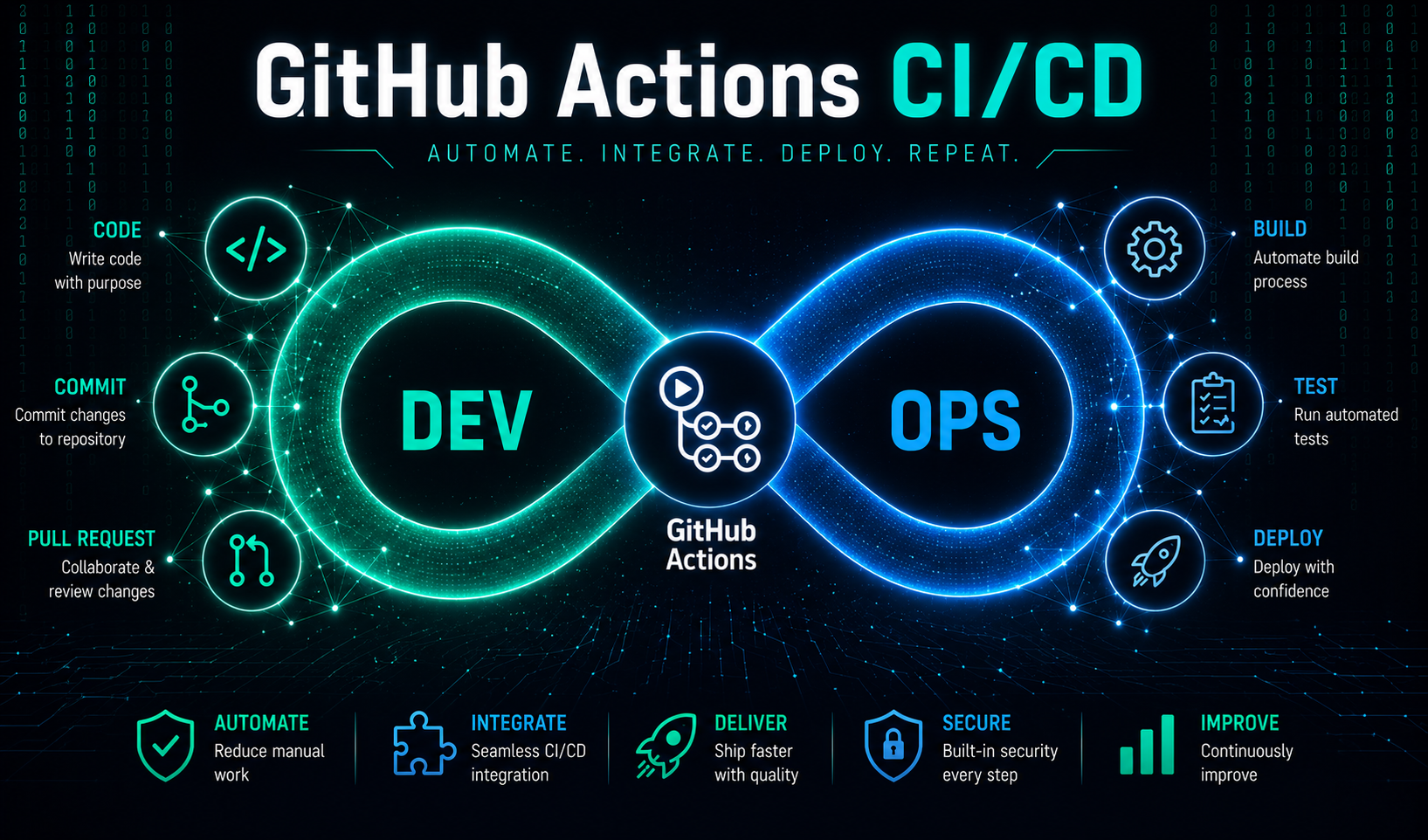
What is CI/CD and Why Does It Matter?
Continuous Integration and Continuous Deployment (CI/CD) is the backbone of modern DevOps workflows. Instead of manually building, testing, and deploying code, CI/CD automates the entire process — saving time, reducing human error, and shipping faster.
GitHub Actions makes this incredibly accessible. It's built directly into GitHub, free for public repositories, and requires zero external tooling to get started.
Prerequisites
Before we begin, make sure you have:
- A GitHub repository with your application code
- A server or cloud provider to deploy to (AWS, DigitalOcean, etc.)
- Basic understanding of YAML syntax
- SSH access to your deployment server
Step 1 — Create Your Workflow File
GitHub Actions workflows live in .github/workflows/ in your repository. Create the directory and a new file:
mkdir -p .github/workflows
touch .github/workflows/deploy.yml
Step 2 — Write the Workflow
Here's a production-ready workflow that builds, tests, and deploys your application:
name: Deploy to Production


on:
  push:
    branches: [main]


jobs:
  deploy:
    runs-on: ubuntu-latest


    steps:
      - uses: actions/checkout@v3


      - name: Set up Node.js
        uses: actions/setup-node@v3
        with:
          node-version: '18'


      - name: Install dependencies
        run: npm ci


      - name: Run tests
        run: npm test


      - name: Deploy to server
        uses: appleboy/ssh-action@master
        with:
          host: ${{ secrets.SERVER_HOST }}
          username: ${{ secrets.SERVER_USER }}
          key: ${{ secrets.SSH_PRIVATE_KEY }}
          script: |
            cd /var/www/myapp
            git pull origin main
            npm ci --production
            pm2 restart myapp
Step 3 — Add Your Secrets
Never hardcode sensitive values in your workflow. Go to your repository Settings → Secrets and variables → Actions and add:
SERVER_HOST— your server IP or domainSERVER_USER— SSH usernameSSH_PRIVATE_KEY— your private SSH key contents
Step 4 — Test Your Pipeline
Push a commit to your main branch and head to the Actions tab in your repository. You'll see your workflow running in real time with logs for each step.
Common Issues and Fixes
Pipeline fails on tests — make sure your test command exits with code 0 on success. Check your package.json scripts.
SSH connection refused — verify your server allows SSH on port 22 and the public key is in ~/.ssh/authorized_keys on the server.
Permission denied on deploy — ensure the SSH user has write access to your deployment directory.
Best Practices
- Always run tests before deploying — never skip this step
- Use branch protection rules so only passing pipelines can merge to main
- Keep secrets out of logs by using GitHub Secrets for all sensitive values
- Add Slack or email notifications so your team knows when deployments succeed or fail
- Use deployment environments in GitHub to require manual approval for production
Wrapping Up
GitHub Actions is one of the most powerful tools in a DevOps engineer's toolkit. Once your pipeline is set up, every push to main automatically tests and deploys your code — giving you confidence to ship faster.
Looking for DevOps roles where you can put these skills to work? Browse remote DevOps and Cloud jobs on StackHire.