
If you've been using Git for a while, you've probably encountered a situation where you wanted to undo something.
Maybe you committed code too early. Maybe you merged the wrong branch. Or perhaps you simply wanted to inspect an older version of your project.
This is where many developers get confused because Git offers multiple commands that seem to do similar things:
- git reset
- git revert
- git checkout
At first glance, all three appear to help you "go back" to a previous state. However, they work in completely different ways and understanding those differences is essential if you want to avoid losing work or breaking your repository history.
In this guide, we'll break down each command with practical examples and explain exactly when you should use them.
Understanding the Example Repository
Let's assume our Git history looks like this:
A → B → C → D
Where:
- A = Initial Project
- B = Login Feature
- C = Dashboard Feature
- D = Payment Feature
Current position:
HEAD → D
We'll use this same repository throughout the article.
Git Reset: Move History Backward
Git Reset is used when you want Git to forget one or more commits.
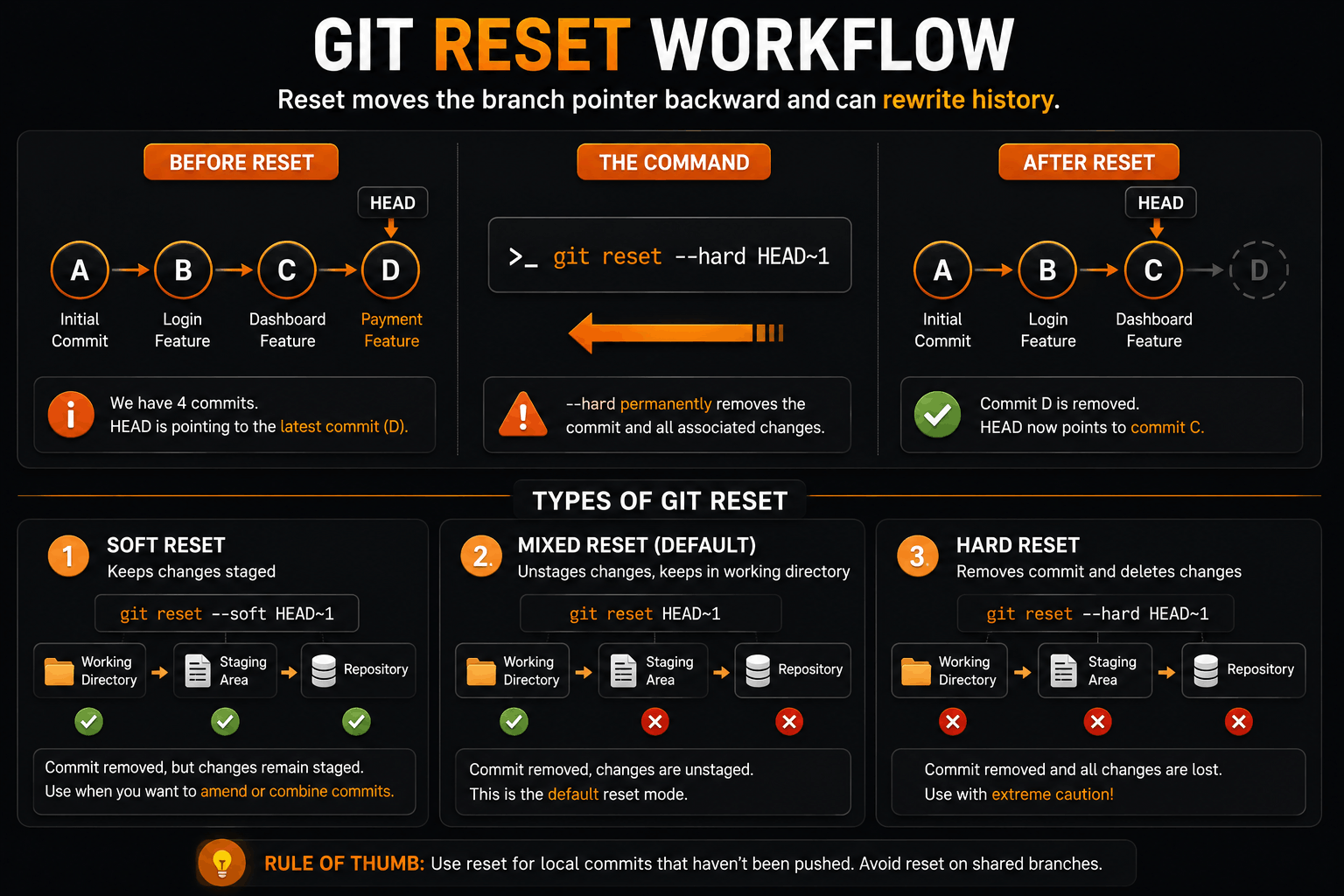
When you run `git reset --hard HEAD~1`, Git moves the branch pointer back to the previous commit. The latest commit disappears from branch history and all associated changes are removed.
Types of Git Reset
One reason developers find Git Reset confusing is that it comes in three different modes.
Soft Reset
git reset --soft HEAD~1
Removes the commit but keeps all changes staged.
- Commit Removed
- Changes Still Staged
Useful when you want to rewrite a commit message or combine commits.
Mixed Reset (Default)
git reset HEAD~1
Removes the commit and unstages the changes.
- Commit Removed
- Changes Still Exist
- Not Staged
This is the most commonly used reset mode.
Hard Reset
git reset --hard HEAD~1
Removes the commit and deletes all associated changes.
- Commit Removed
- Changes Removed
Use this carefully because lost work may be difficult to recover.
Git Revert: Undo Without Rewriting History
Now imagine the same commit D has already been pushed to GitHub and several developers are working from it.
Using reset would rewrite history and potentially break everyone's repositories.
Instead, use:
git revert HEAD
Git creates a brand-new commit that reverses the changes introduced by D.
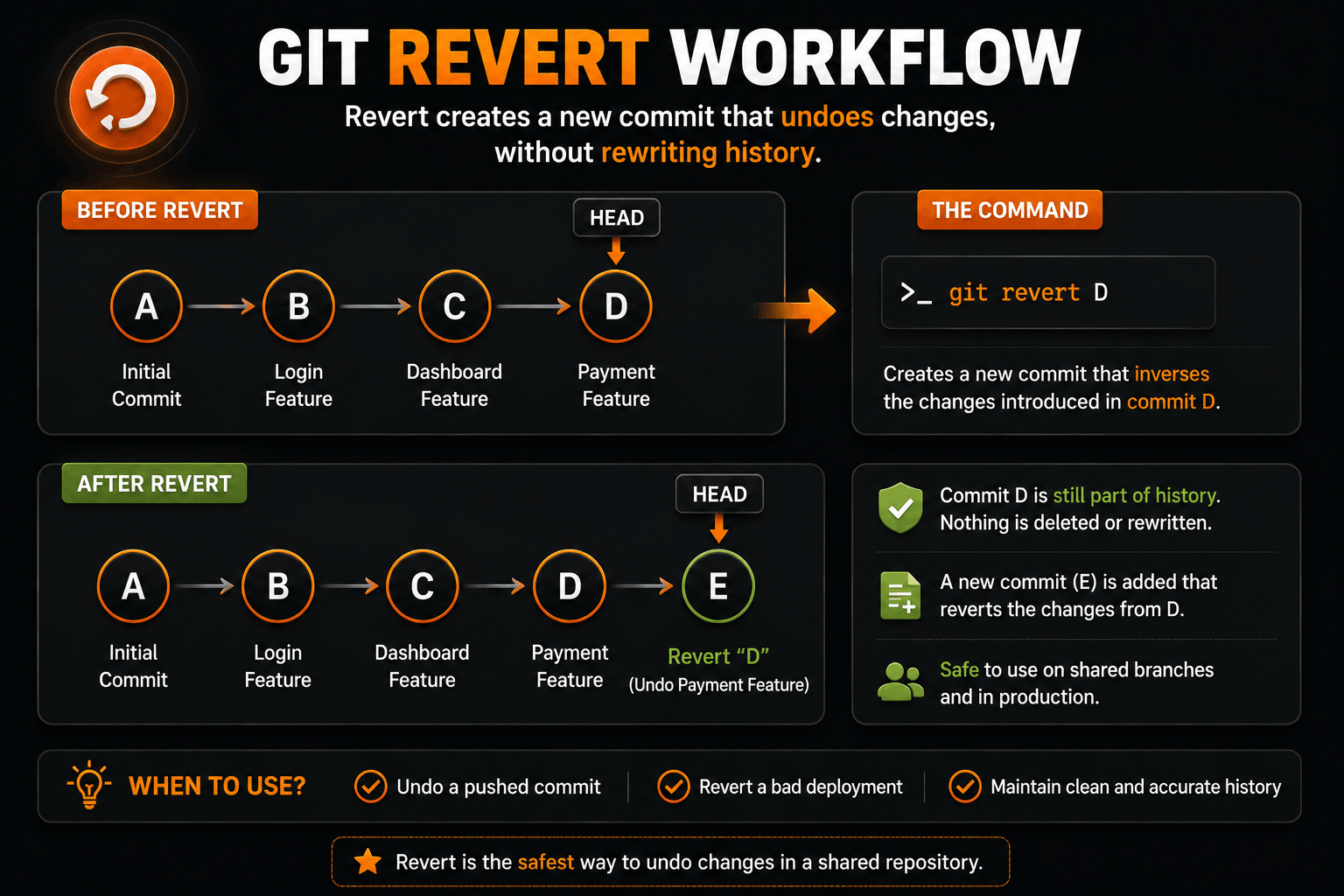
Notice something important.
The original commit still exists.
Git simply adds another commit that cancels it out.
This is why revert is the preferred option for production systems and shared branches.
Real-World Example of Revert
Imagine you deploy a payment feature to production.
A few minutes later, users start reporting errors.
Instead of rewriting history:
git revert HEAD
git push origin main
A new revert commit is created and deployed.
Your entire team keeps a clean and accurate history of what happened.
This is one reason DevOps teams often prefer revert over reset.
Git Checkout: Travel Through History
Unlike reset and revert, checkout doesn't remove or undo commits.
Instead, it allows you to move between branches or inspect older commits.
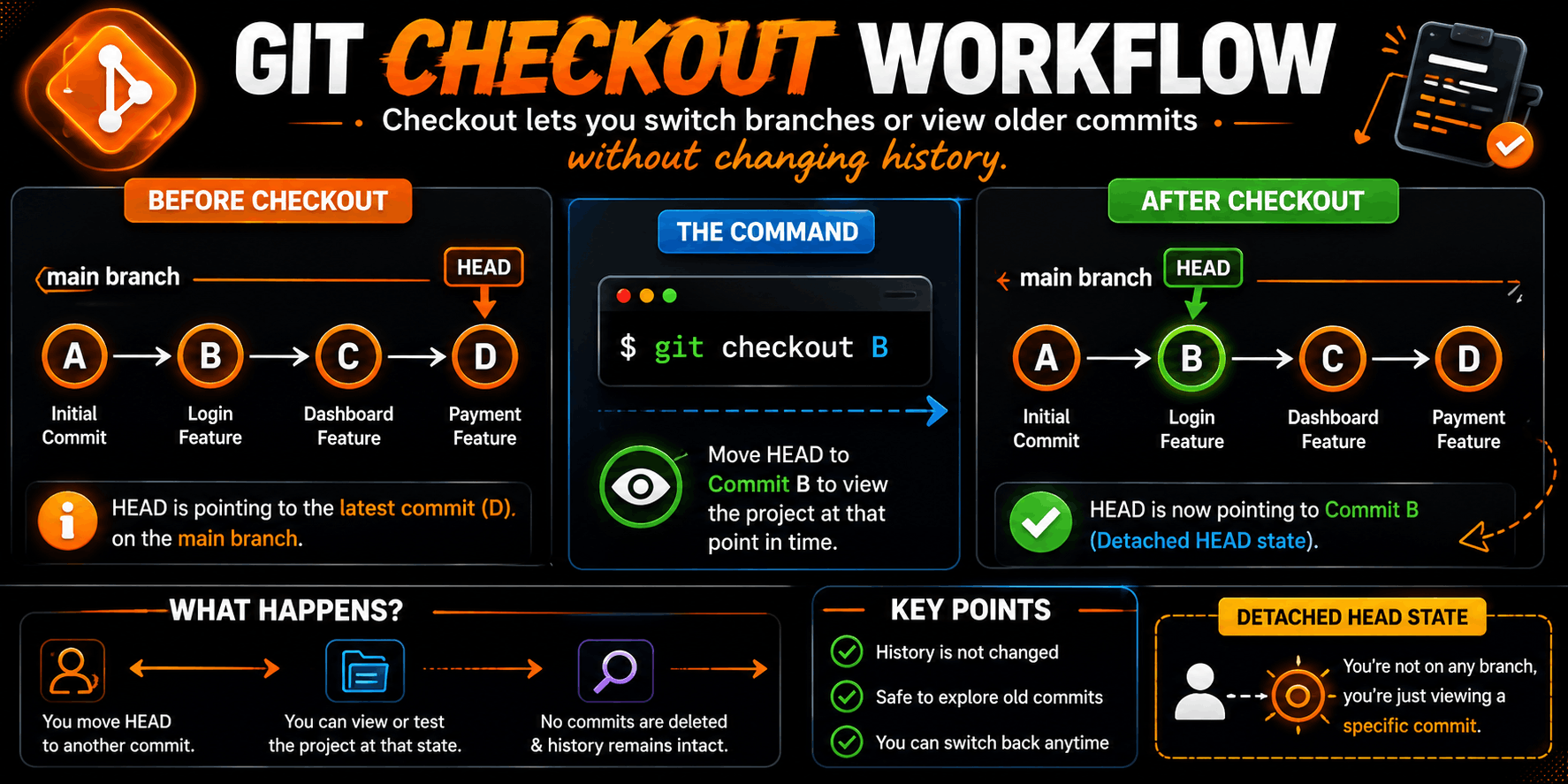
Developers commonly use checkout when:
- Debugging issues
- Inspecting old code
- Testing historical versions
- Comparing changes
No history is modified. Nothing is deleted. You're simply browsing the repository's timeline.
When Should You Use Each Command?
Use Reset When
You are working locally and want to remove commits that haven't been shared yet.
Examples:
- Wrong commit message
- Accidental commit
- Cleaning up local history
Avoid using reset on shared branches.
Use Revert When
The commit already exists on GitHub or has been shared with other developers.
Examples:
- Roll back a bad deployment
- Undo a production bug
- Reverse a merged feature
This is the safest option for team environments.
Use Checkout When
You want to inspect code from another branch or commit.
Examples:
- Debugging
- Reviewing old code
- Testing historical versions
Checkout doesn't modify repository history.
The Mistake Most Beginners Make
Many new developers use:
git reset --hard
thinking it's the quickest way to undo mistakes.
While it works, it can permanently remove uncommitted work.
A safer approach is:
git revert
for shared code and
git reset --soft
for local cleanup.
As a general rule:
If other developers have already seen the commit, use Revert. If only you have seen the commit, Reset is usually fine.
Final Thoughts
Git Reset, Git Revert, and Git Checkout all help you move around your repository's history, but they solve very different problems.
Reset rewrites history and is best suited for local cleanup. Revert preserves history and is the safest way to undo changes in shared repositories. Checkout allows you to move between branches and inspect older commits without modifying anything.
Understanding the difference between these commands can save you from some of the most common Git mistakes and make working with branches, deployments, and team collaboration much less stressful.
The simplest way to remember them is:
- Reset = Remove history
- Revert = Undo with a new commit
- Checkout = View another point in history
Master these three commands, and you'll handle most Git recovery situations with confidence.