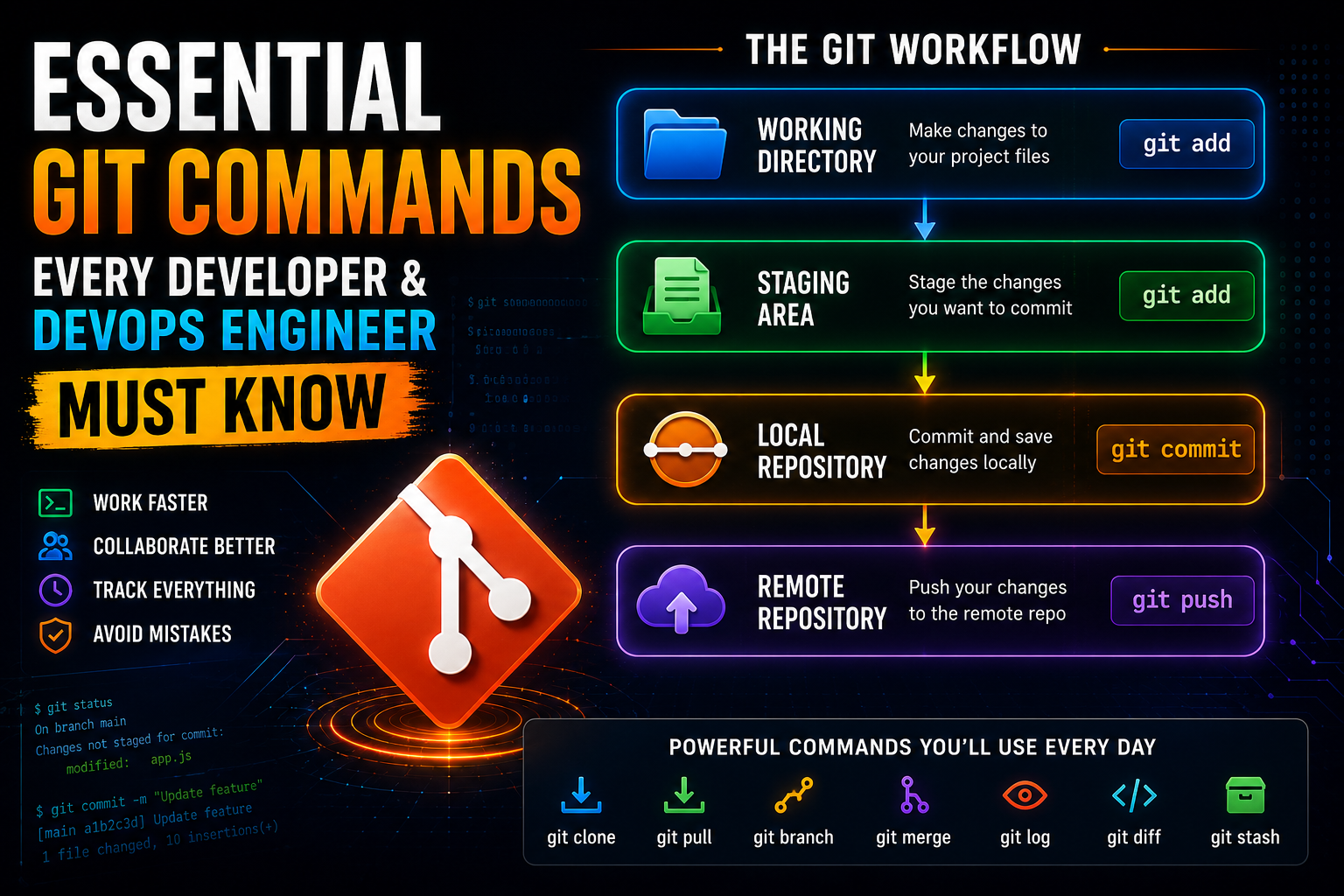
Version control is one of the most important skills in modern software development. Whether you're building web applications, managing cloud infrastructure, or working on CI/CD pipelines, Git helps you track changes, collaborate with teams, and maintain a complete history of your project.
In this guide, we'll walk through the most commonly used Git commands in the same order developers use them in real-world projects.
What is Git?
Git is a distributed version control system that helps developers track and manage changes in source code over time.
Instead of creating multiple versions of the same file:
app-final.js
app-final-v2.js
app-final-final.js
Git stores every change in an organized history, allowing you to review, restore, and collaborate on code efficiently.
Some key benefits of Git include:
- Tracking code changes
- Team collaboration
- Branching and merging
- Rollback capabilities
- Version management
Think of Git as a time machine for your code.
Understanding the Git Workflow
Before learning commands, it's important to understand how Git works internally.
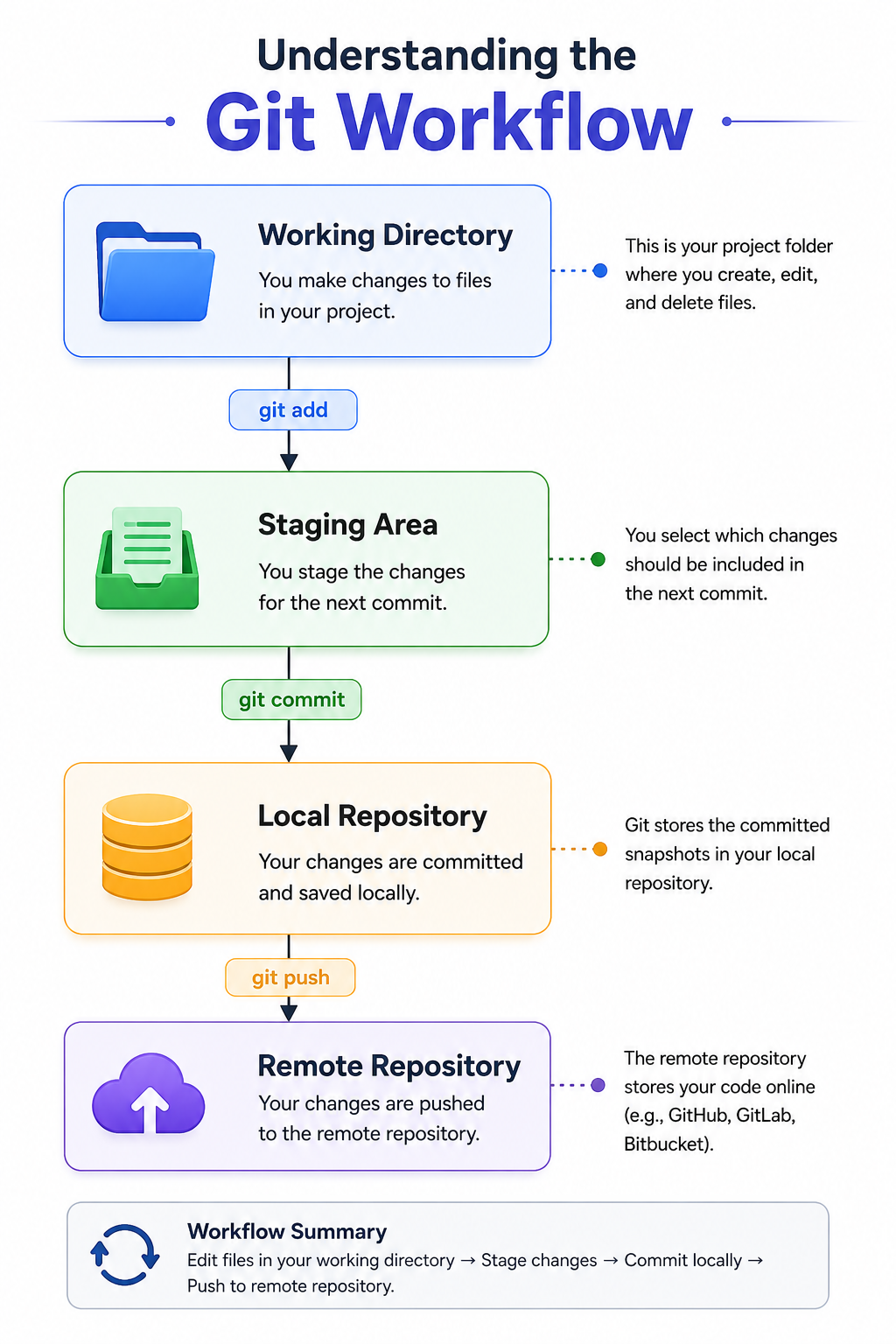
Every Git command fits somewhere in this workflow.
Step 1: Create or Clone a Repository
If you're starting a new project:
git init
This initializes a new Git repository.
If you're joining an existing project:
git clone https://github.com/user/project.git
This downloads the repository to your local machine.
Step 2: Check the Repository Status
Before making changes, it's a good habit to check the current repository status.
git status
This command shows:
- Modified files
- New files
- Staged files
- Untracked files
Many developers use this command dozens of times each day.
Step 3: Stage Your Changes
After modifying files, add them to the staging area.
Stage a specific file:
git add app.js
Stage all files:
git add .
The staging area acts like a review zone before creating a commit.
Step 4: Review Changes
Before committing, review what has changed.
git diff
This helps prevent accidental commits and allows you to verify modifications.
Step 5: Save Changes with a Commit
Once changes are staged, create a commit.
git commit -m "Add user authentication feature"
A commit is a snapshot of your project at a specific point in time.
Always write meaningful commit messages.
Good:
git commit -m "Fix login validation bug"
Bad:
git commit -m "updated code"
Step 6: View Commit History
To see previous commits:
git log
For a cleaner view:
git log --oneline
Example:
8d7f2a1 Fix login validation bug
f3e9a21 Add user authentication
Step 7: Work with Branches
Branches allow developers to work on features without affecting the main codebase.
View existing branches:
git branch
Create a new branch:
git branch feature-login
Create and switch to a branch:
git checkout -b feature-login
Or using the newer command:
git switch -c feature-login
Step 8: Merge Changes
After completing a feature, merge it into the main branch.
git checkout main

git merge feature-login
Git automatically combines changes whenever possible.
Step 9: Push Changes to Remote Repository
Upload your commits to GitHub, GitLab, or Bitbucket.
git push origin main
This makes your changes available to other team members.
Step 10: Pull Latest Changes
Before starting work, always pull the latest updates.
git pull origin main
This keeps your local repository synchronized with the remote repository.
Useful Commands for Daily Work
Fetch Remote Changes
Download changes without merging them.
git fetch
Temporarily Save Work
git stash
Restore saved work:
git stash pop
Undo a Commit Safely
git revert COMMIT_ID
Unstage Files
git reset
A Typical Git Workflow
Here's what a normal developer workflow looks like:
git pull origin main

git checkout -b feature-authentication

# Write code

git add .

git commit -m "Add JWT authentication"

git push origin feature-authentication
Then:
- Create a Pull Request
- Review Code
- Merge Changes
- Deploy Application
Git Commands Every DevOps Engineer Uses Daily
If you're working with:
- Docker
- Kubernetes
- Terraform
- GitHub Actions
- Infrastructure as Code
you'll regularly use:
git clone
git pull
git add
git commit
git push
git branch
git merge
git log
git diff
git stash
These commands form the foundation of most DevOps workflows.
Final Thoughts
Git is one of the most valuable tools a developer or DevOps engineer can learn. While Git provides hundreds of commands, most real-world work revolves around a small set of essential commands.
Master these commands, understand the Git workflow, and you'll be comfortable contributing to almost any software project or DevOps environment.